Create Service Contracts in Seconds with Quick Actions
Momentum FSM Team·
See how Momentum FSM Quick Actions turn recurring services into one-click service contracts—with smart scheduling, route-aware time slots, and automatic visit generation.
Creating estimates in Momentum FSM is fast by design. You can always start from a blank estimate form, but for the services you sell every week, Quick Actions are the fastest path from intent to a signed contract and a full year of scheduled visits.
Watch: from Quick Action to scheduled contract
In this short demo, we use a weekly pool cleaning Quick Action to create a customer, pick a route-aware time slot, and schedule an entire one-year service contract—including all 52 visits—in just a few clicks.
What are Quick Actions?
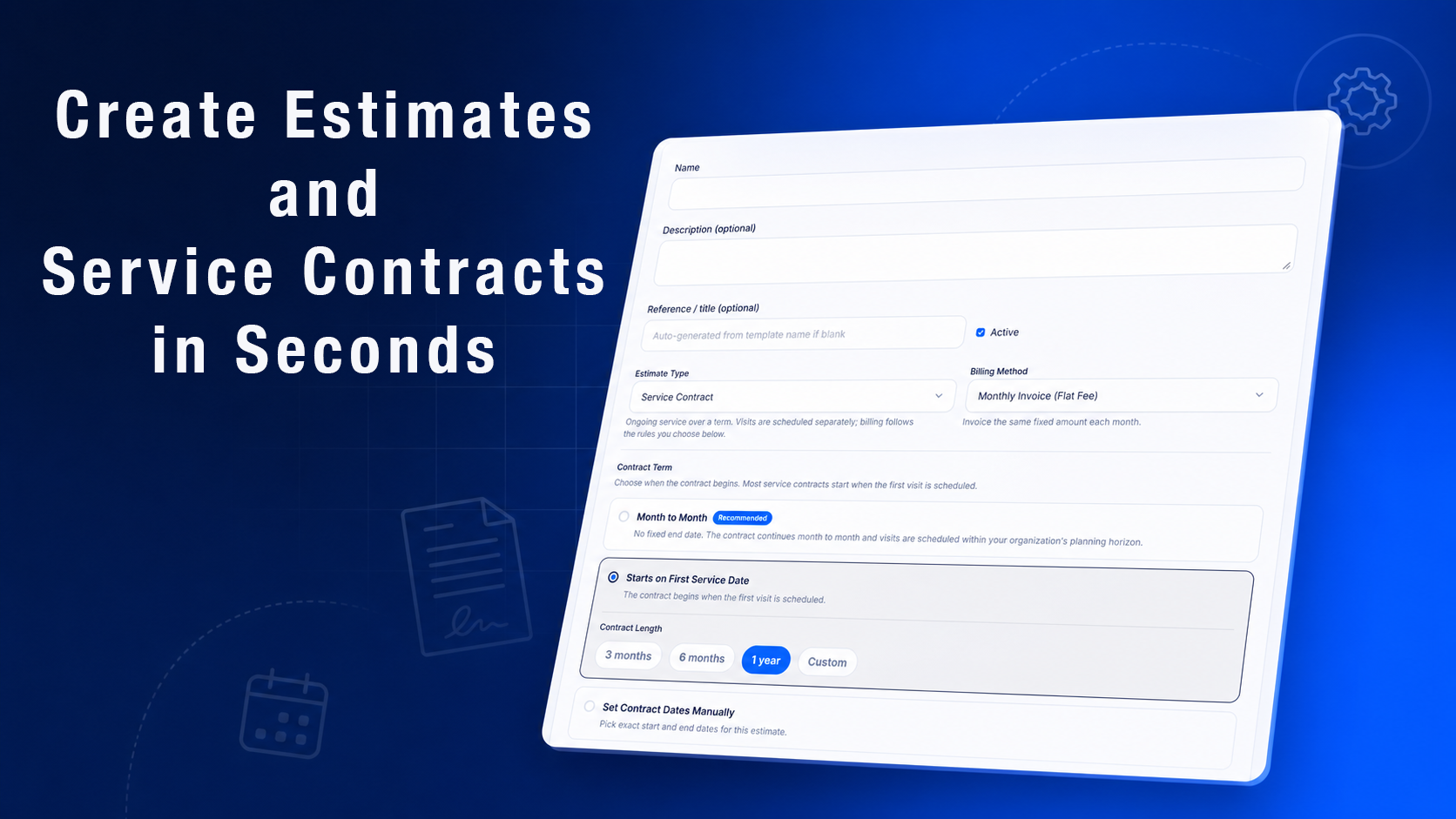
Quick Actions are pre-configured estimate templates you set up once in Settings → Estimates → Quick Actions Buttons. Each button stores the estimate type, billing method, contract term, line items, customer note, and whether customer approval is required.
Use them for:
Service contracts — recurring work like weekly pool cleaning, lawn care, or pest control.
One-time jobs — especially when the job includes several line items you do not want to re-enter each time.
Pre-configure your most common services so office staff only pick the customer and schedule.
Setting up a Quick Action for a service contract
When you add a Quick Action, you define everything Momentum needs before anyone opens the quick-entry form on the dashboard or schedule.
Name the action, choose Service Contract, set billing, and define how the contract term starts.
Common configuration choices include:
Estimate type — Service Contract for ongoing work, or One-Time Job for single visits.
Billing method — for example, monthly flat-fee invoicing for pool routes.
Contract term — month-to-month, a fixed length starting on the first service date, or manual start and end dates.
Line items — catalog services, bundles, or custom lines with quantities and rates.
Customer approval — when enabled, saving the Quick Action notifies the customer by email, SMS (if configured), and in-app notification to accept the contract before visits are scheduled.
Default note to customer — a message included on the estimate or contract.
Add line items, decide whether approval is required, and include a default customer note.
When customer approval is not required, choosing the Quick Action and confirming the schedule creates the contract and visits immediately.
Using a Quick Action from the dashboard or schedule
Once your Quick Actions are active, creating work is straightforward:
Select the Quick Action for the service you want—such as Standard or Premium Pool Cleaning.
Create a new customer or search for an existing one.
Review recommended time slots based on your routes, workload, and scheduling rules.
Assign a service representative or field team if needed, then choose the service start date.
Confirm scheduling. Momentum checks for conflicting appointments and lets you proceed when appropriate.
Weekly services can follow daily scheduling rules, exact-time windows, time-window scheduling, or weekly queues—whatever matches how your business runs routes.
What happens after you schedule
When you confirm, Momentum FSM creates the service contract and generates every visit for the term—for example, all 52 weekly visits across a one-year contract. Visits that would fall on a holiday or organization closed day are adjusted automatically.
A status indicator at the top of the page shows progress while visits are created. You can keep working elsewhere in Momentum while generation runs in the background.
Put Quick Actions to work in your operation
If your team repeatedly sells the same packaged services, Quick Actions remove repetitive data entry and keep contracts consistent. Set up your templates once, then let schedulers focus on customers and dates—not re-building estimates from scratch.
Thank you for taking the time to learn more about what Momentum can do for your field service business.
Running more than one type of service shouldn't mean running more than one piece of software. Here's what actually breaks with separate tools per trade, and what one system fixes.
The nine features that separate a real contractor CRM from a generic one, and what it looks like when they're actually built into one system instead of stitched together.
Momentum FSM Team·
Get the Momentum app
Schedule, dispatch, and serve customers from your phone.